Zigbee vs. Wi-Fi Smart Bulbs [Engineer’s Guide]
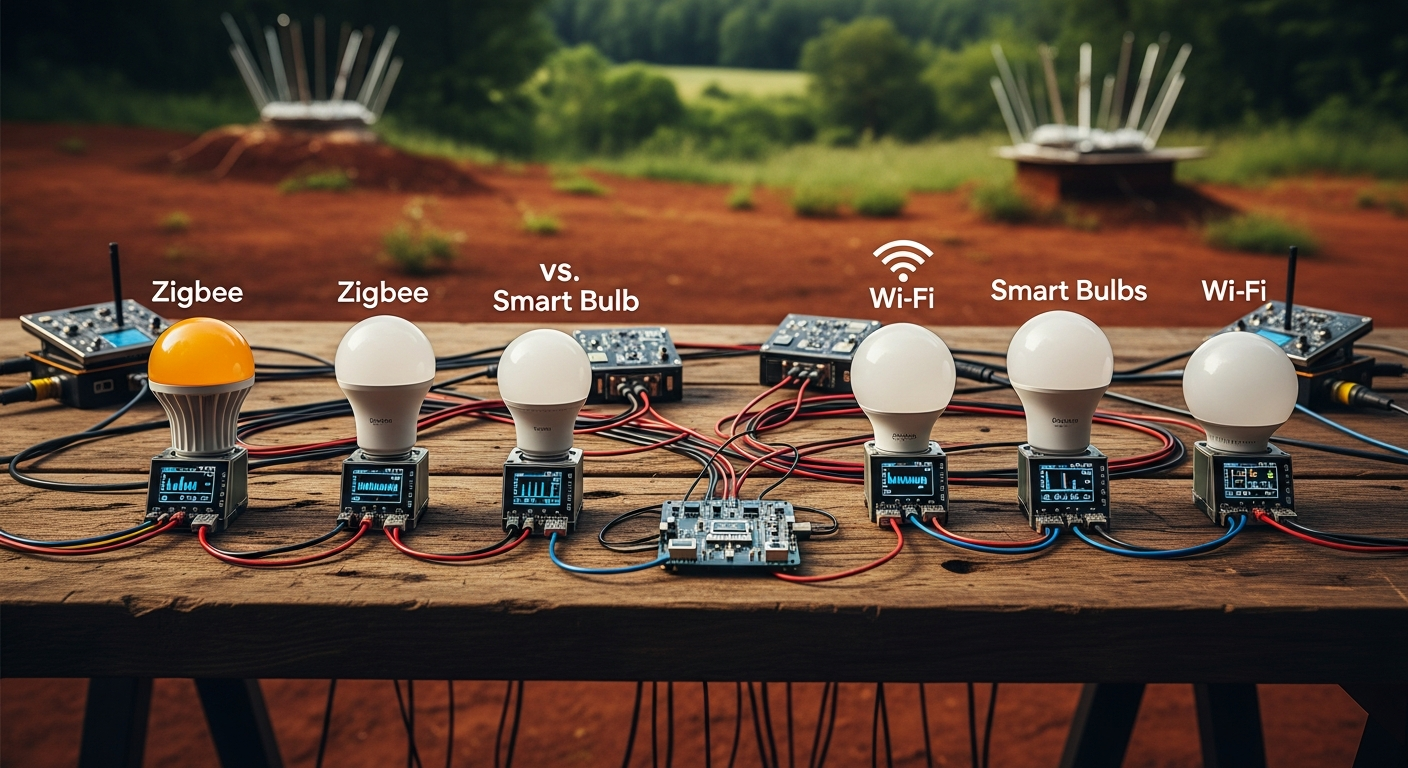
Your smart lights aren’t smart if they’re not reliable. If you’ve ever flipped a switch on your phone only to watch your lights turn on one-by-one like a slow-motion train wreck—or worse, not at all—you’ve experienced the failure of a poorly designed system. The problem isn’t the bulb; it’s the protocol. Out here, where a downed pine can take out the internet for a day, reliability is the only specification that matters, and that means choosing a system built for stability, not just a low entry price.
We’re going to do a technical deep dive into the two dominant protocols for smart lighting: Wi-Fi and Zigbee. I’m not interested in flashy features. I’m interested in what works, what fails, and why. We will analyze the engineering trade-offs so you can build a system that is robust, efficient, and locally controlled.
The Core Problem: Your Wi-Fi Router Was Built for the Wrong Job
The fundamental issue with Wi-Fi-based smart devices is that they treat your home network like an all-you-can-eat buffet. Every single bulb, plug, and switch you add is another client connecting directly to your router.
Consumer-grade routers, even the decent ones, are not designed to be IoT hubs. They are optimized for high-bandwidth tasks for a handful of clients: streaming video to a laptop, handling a game console, and serving your phone. They are not engineered to maintain dozens of persistent, low-bandwidth connections.
When you add 20, 30, or 50 Wi-Fi bulbs, you are forcing your router to perform a task it was never designed for. This leads to:
- IP Address Exhaustion: Your router’s DHCP pool can run out of available addresses.
- CPU & Memory Overload: The router’s processor struggles to manage the bloated connection table, increasing latency for all devices on your network.
- Increased Interference: Dozens of devices chattering on the same 2.4GHz channels create a noisy radio frequency (RF) environment, degrading performance.
Your Wi-Fi network, the critical backbone for your computers and phones, becomes slow and unstable because it’s being choked by cheap lightbulbs. This is not a robust system.
Technical Deep Dive: Comparing the Protocols
To understand why Zigbee is the superior engineering solution for most automated systems, we need to compare the protocols on a technical level. It’s not about brand names; it’s about the underlying architecture.
Network Topology: The Unseen Advantage of the Mesh
- Wi-Fi uses a Star Network. Every bulb connects directly to the central router. If a bulb is too far away or something is blocking the signal—like a thick wall or, in my case, a stand of Georgia pines between the house and the workshop—it simply fails. The only solution is to add Wi-Fi extenders, which add more complexity and potential points of failure.
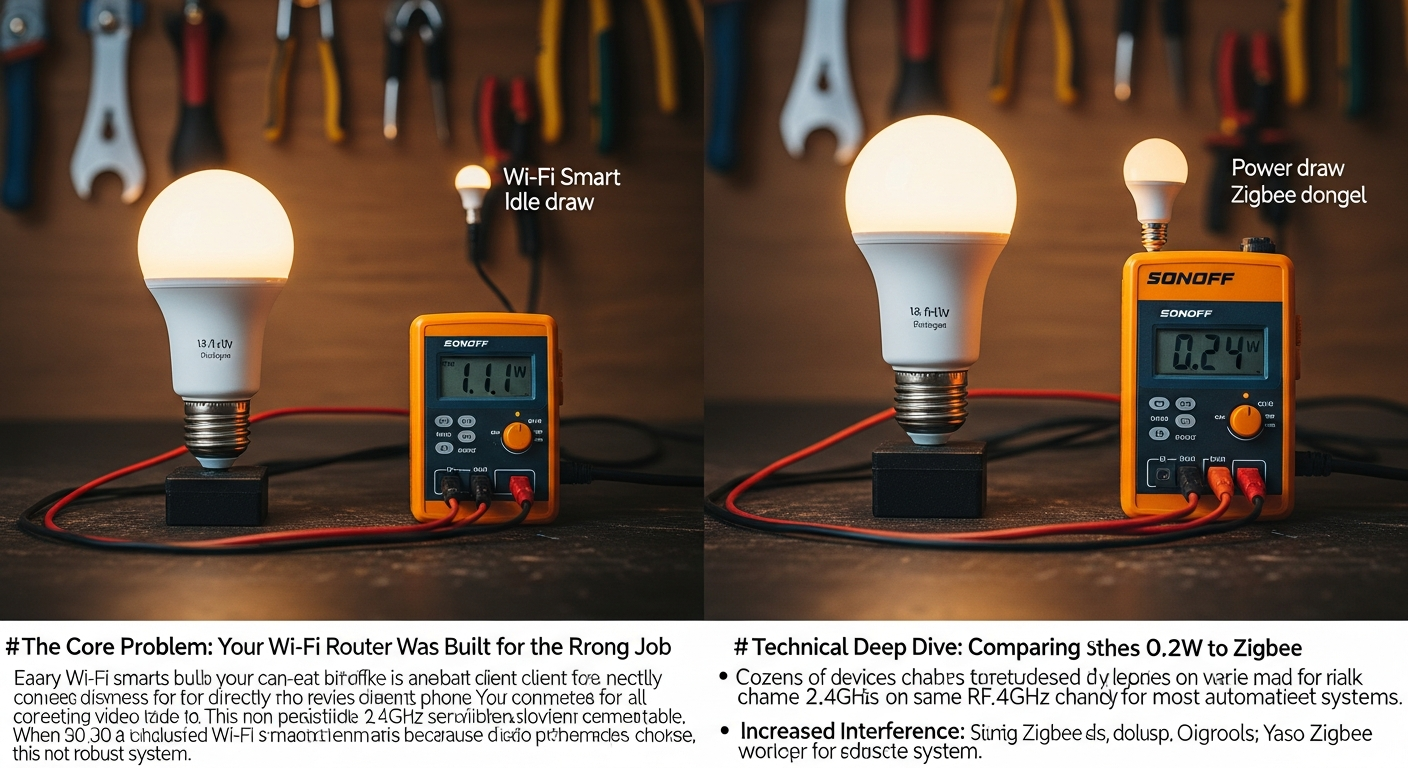
- Zigbee uses a Mesh Network. The Zigbee coordinator (the “hub”) is the brain, but every mains-powered Zigbee device (like a lightbulb or smart plug) acts as a repeater. They relay messages for other devices. This creates a resilient, self-healing network. If one path is blocked, the signal simply finds another route. The more devices you add, the stronger and more reliable the network becomes.
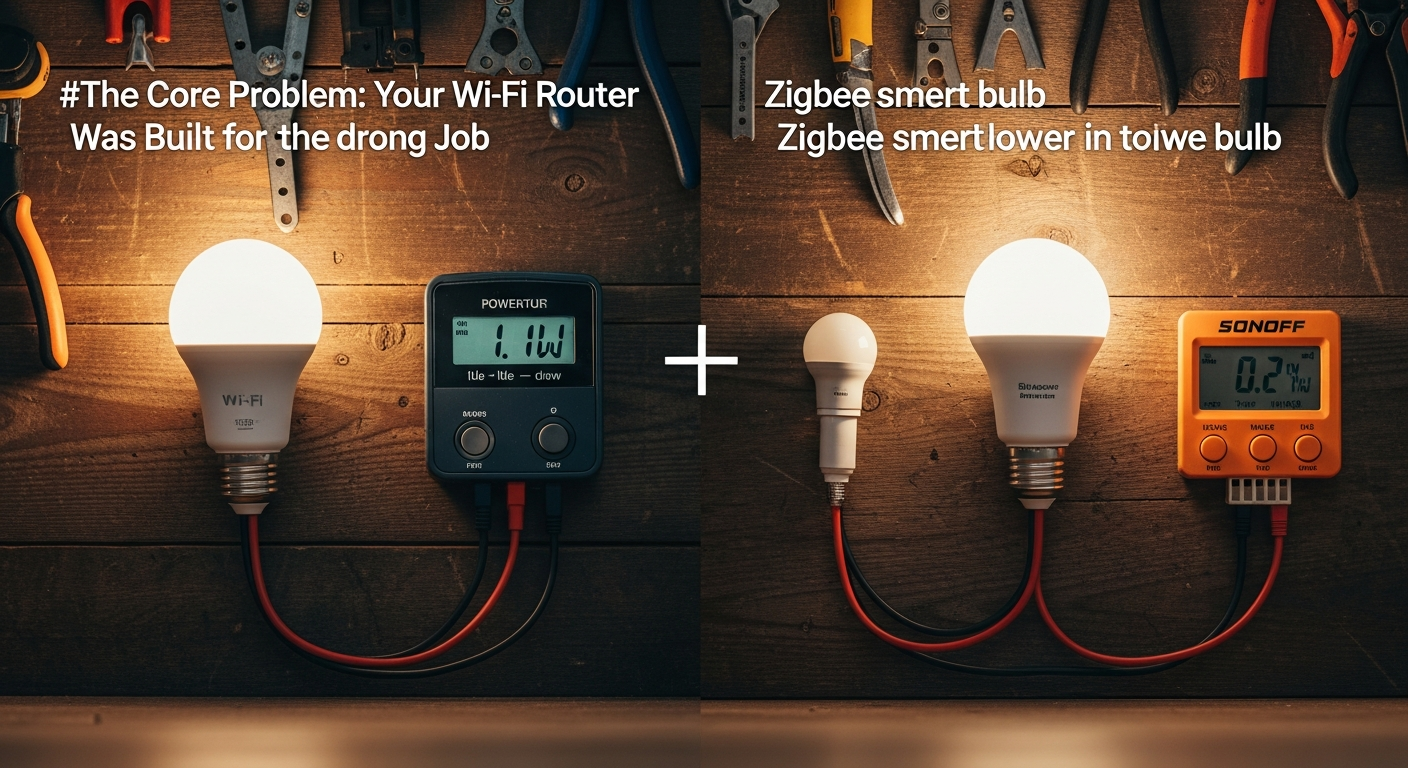
For a rural property with detached buildings or thick, older construction, a mesh network is not a luxury; it’s a necessity.
Technical Specification Comparison
This table breaks down the critical differences. Pay close attention to the Idle Power and Network Topology columns—this is where the long-term reliability and efficiency differences become clear.
| Specification | Wi-Fi (e.g., Wyze Color Bulb) | Zigbee (e.g., Philips Hue, IKEA Trådfri) | Technical Analysis & Failure Points |
|---|---|---|---|
| Network Protocol | IEEE 802.11n/g/b (2.4GHz) | IEEE 802.15.4 (2.4GHz) | Both use the 2.4GHz spectrum, but Zigbee is a low-power, low-data protocol designed to coexist, while Wi-Fi is a high-bandwidth protocol that creates significant overhead for simple on/off commands. |
| Network Topology | Star (Device -> Router) | Mesh (Device -> Device -> Coordinator) | Critical Failure Point (Wi-Fi): The star topology overloads consumer routers and has a single point of failure for range. A mesh is self-healing and expands with each new mains-powered device. |
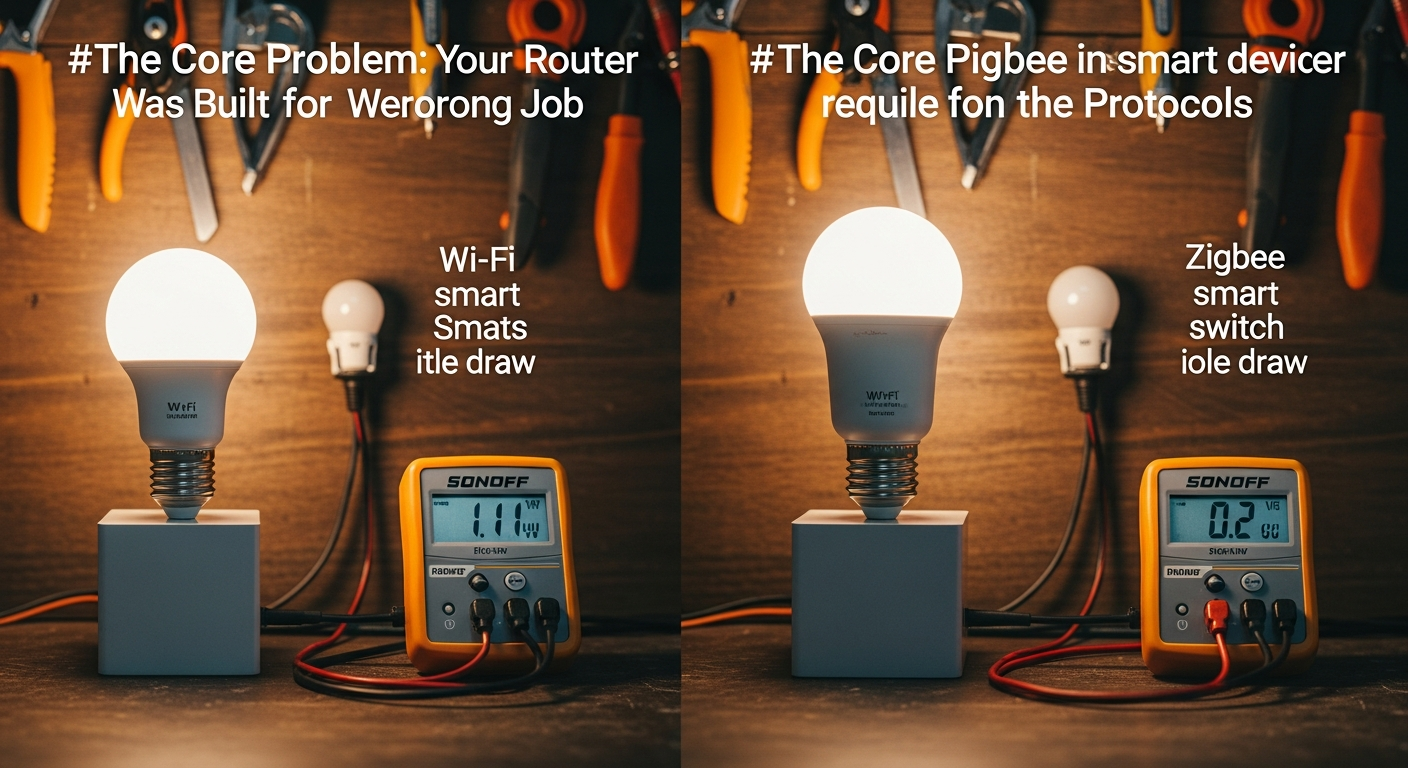
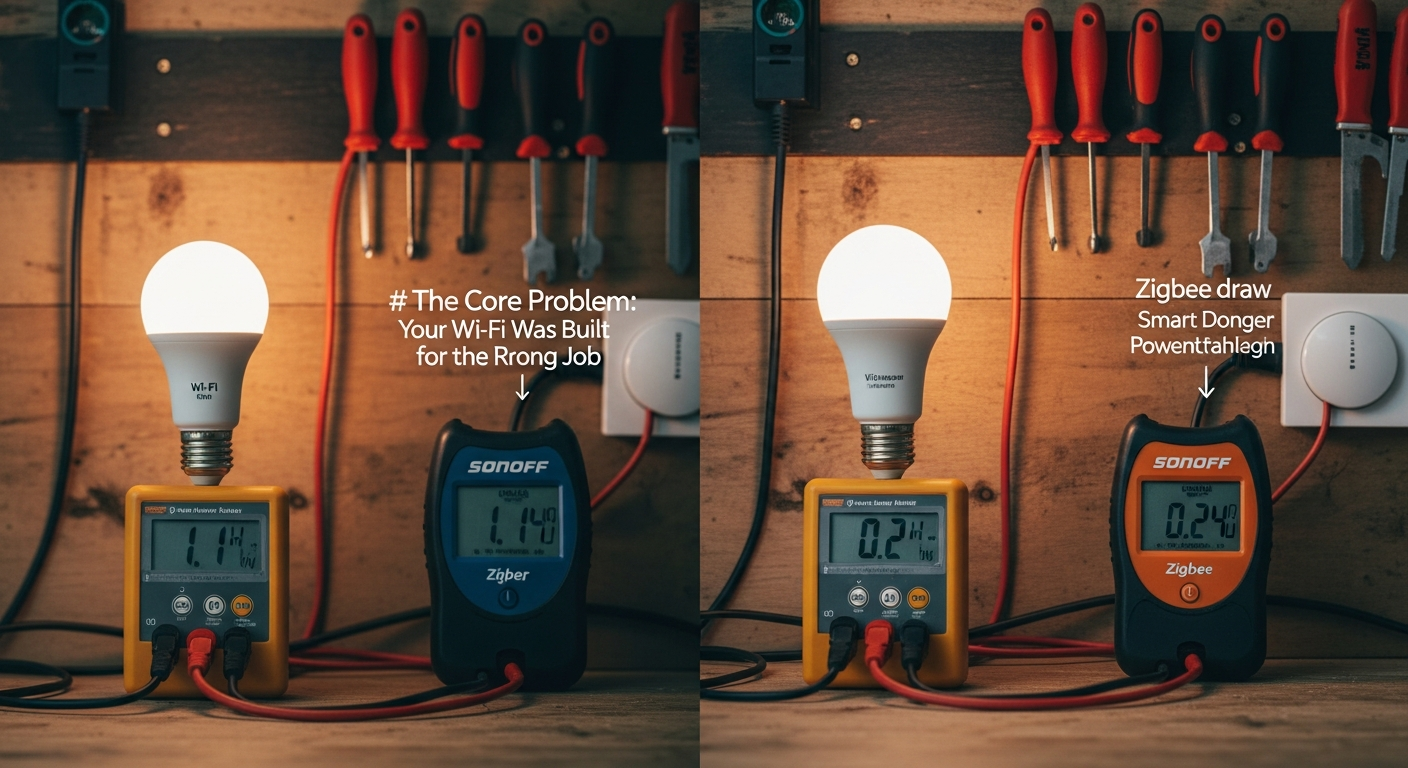
| Idle Power Consumption | ~0.8 – 1.5 Watts | ~0.03 – 0.05 Watts | Efficiency Failure (Wi-Fi): A home with 40 Wi-Fi bulbs has a constant “vampire drain” of ~40W. The Zigbee equivalent is ~2W. This is a measurable impact on your power bill. |
| Scalability | Poor (Limited by router, <50 devices) | Excellent (Hundreds of devices per coordinator) | Systemic Failure (Wi-Fi): Exceeding your router’s client limit degrades your entire home network, affecting laptops, phones, and streaming. Zigbee isolates this traffic completely. |
| Control Latency | Variable, causes “Popcorn Effect” | Near-instantaneous, simultaneous group control | The “Popcorn Effect” in Wi-Fi groups is a direct result of the router sending individual commands to each bulb’s IP address. Zigbee uses a highly efficient group broadcast message. |
| Control Dependency | Often Cloud-Dependent (Tuya, Wyze) | Local Control with correct hub (Home Assistant) | Reliability Failure (Wi-Fi): If the vendor’s server goes down or your internet connection is lost (common with Starlink rain fade), your lights stop working. Local control is non-negotiable for a reliable system. |
| Interoperability | Poor (Vendor Lock-in) | High (Zigbee 3.0 is a standard) | With a single Zigbee 3.0 coordinator, you can control devices from Philips, IKEA, Aqara, GE, and many others. This prevents vendor lock-in and ensures long-term viability. |
Latency and the “Popcorn Effect”
When you tell a group of 10 Wi-Fi bulbs to turn on, your router sends 10 separate, individually addressed packets. Due to network jitter and processing order, they arrive and are executed at slightly different times. The result is a staggered, unprofessional “popcorn” or “pop-on” effect.
Zigbee is built for this task. It has a native group messaging capability. Your coordinator sends a single, lightweight broadcast message addressed to “Group 1.” Every bulb in that group receives and executes the command simultaneously. The result is a crisp, instantaneous response that feels like a single, wired system.
The Hardware: Building a Robust Zigbee System
While a Wi-Fi bulb seems simpler—just screw it in and connect to the app—you are trading short-term convenience for long-term instability. Building a proper Zigbee network requires one extra piece of hardware but provides a foundation you can build on for years.
- Installation Difficulty (Wi-Fi): 1/5 (Easy, but misleadingly so)
- Installation Difficulty (Zigbee): 2/5 (Requires one-time hub setup)
The Zigbee Coordinator: The Brains of the Operation
Forget brand-specific hubs like the Philips Hue Bridge if you want true flexibility. We need a universal translator. The most reliable and cost-effective solution is a USB Zigbee coordinator paired with local control software like Home Assistant.
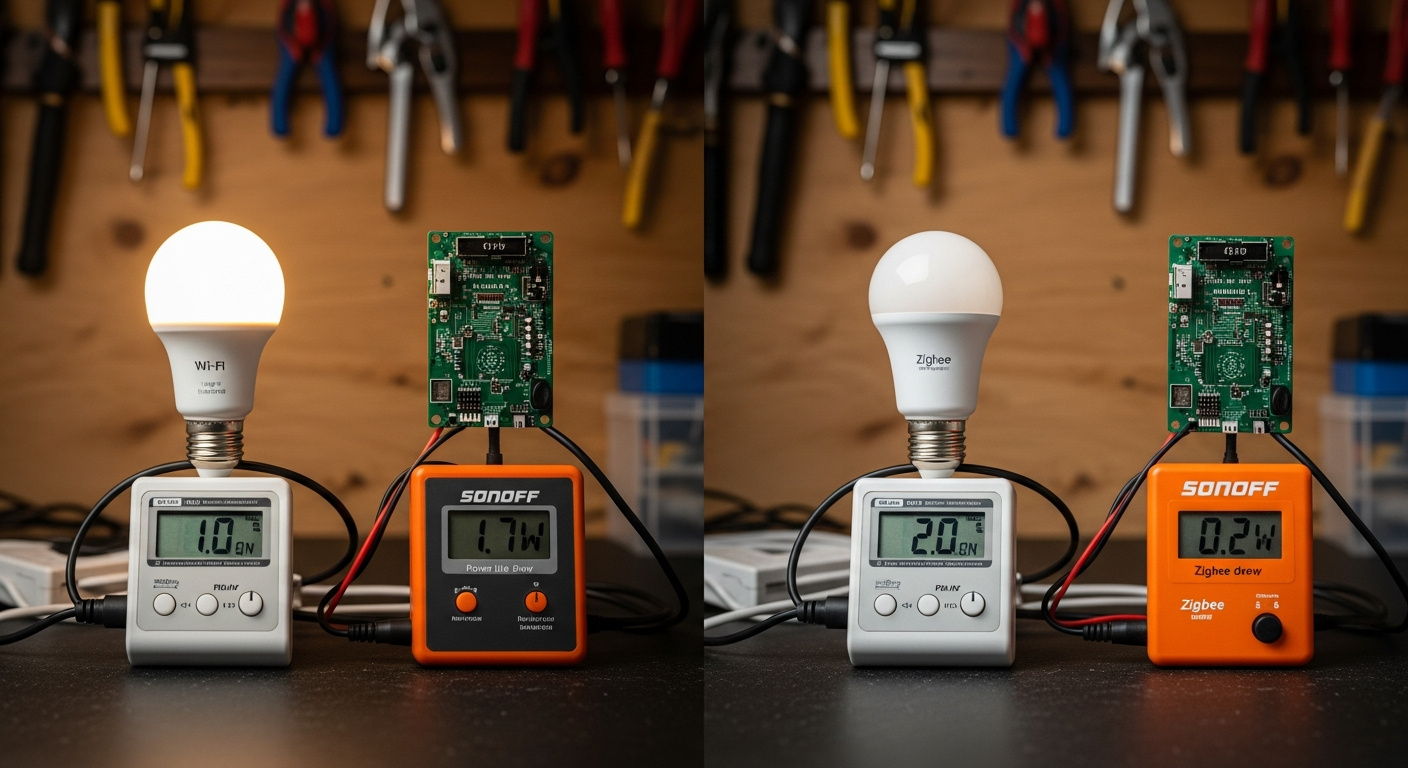
My recommendation is the SONOFF Zigbee 3.0 USB Dongle Plus (P-version). It uses a robust Texas Instruments CC2652P chip, has excellent range, and is fully supported by the open-source community.
Compatibility Check
- Home Assistant: This is the ideal platform. A Zigbee dongle integrates directly via ZHA (Zigbee Home Automation) or Zigbee2MQTT, giving you 100% local control. No cloud, no internet, no problem.
- Starlink: Local control is paramount for Starlink users. Signal drops due to heavy rain or obstructions are common. A cloud-dependent Wi-Fi system will fail frequently, while a local Zigbee system running on Home Assistant will continue to operate flawlessly.
- Device Compatibility: The beauty of the Zigbee 3.0 standard is interoperability. You can pair premium Philips Hue bulbs for primary lighting, cost-effective IKEA Trådfri bulbs for accents, and Aqara sensors for automation triggers, all to the same coordinator.
Step-by-Step: Basic Zigbee Coordinator Setup in Home Assistant
This assumes you have a working Home Assistant instance (e.g., on a Raspberry Pi or old PC).
- Hardware Connection: Plug the SONOFF Zigbee Dongle into a USB port on your Home Assistant machine. Use a short USB extension cable to move the dongle away from the machine’s electrical interference, especially USB 3.0 ports.
- Navigate to Integrations: In your Home Assistant dashboard, go to
Settings > Devices & Services. - Discover and Configure: Home Assistant should automatically discover the new USB device. Click
Configureon the “Zigbee Home Automation” card. - Select Serial Port: It will ask you to pick the serial port. Choose the one corresponding to your dongle (usually something like
/dev/ttyUSB0). Select the “SONOFF” radio button for the device type. - Create Network: Follow the prompts to create a new Zigbee network. It will handle the channel selection and network key generation automatically.
- Start Pairing: Once configured, click
Configureon the ZHA integration card, then+ ADD DEVICE. Put a Zigbee bulb into pairing mode (usually by power-cycling it several times) and it will appear in Home Assistant.
Efficiency ROI: The Real Cost of Your System
Engineers measure cost over the lifetime of a system, not just the day of purchase.
- Technical Specs (Power Draw):
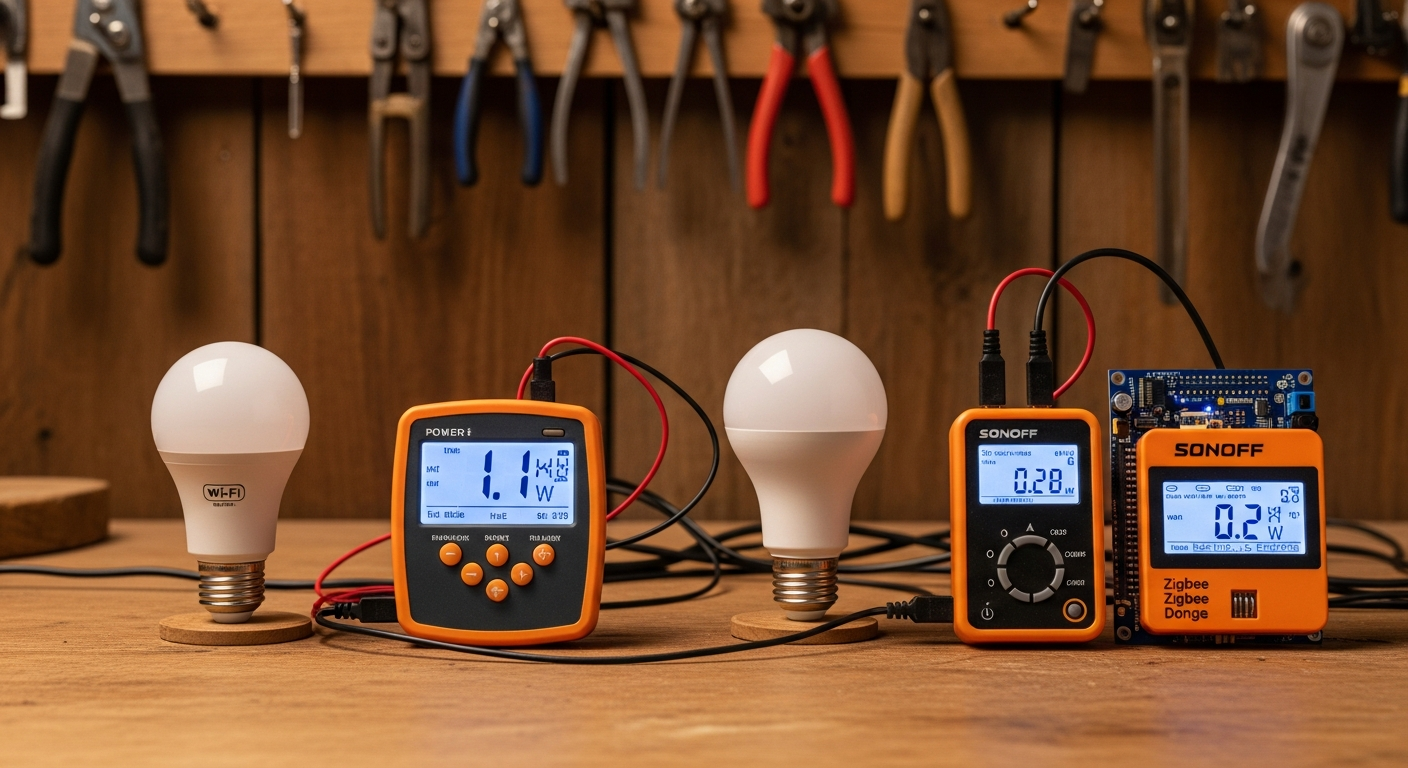
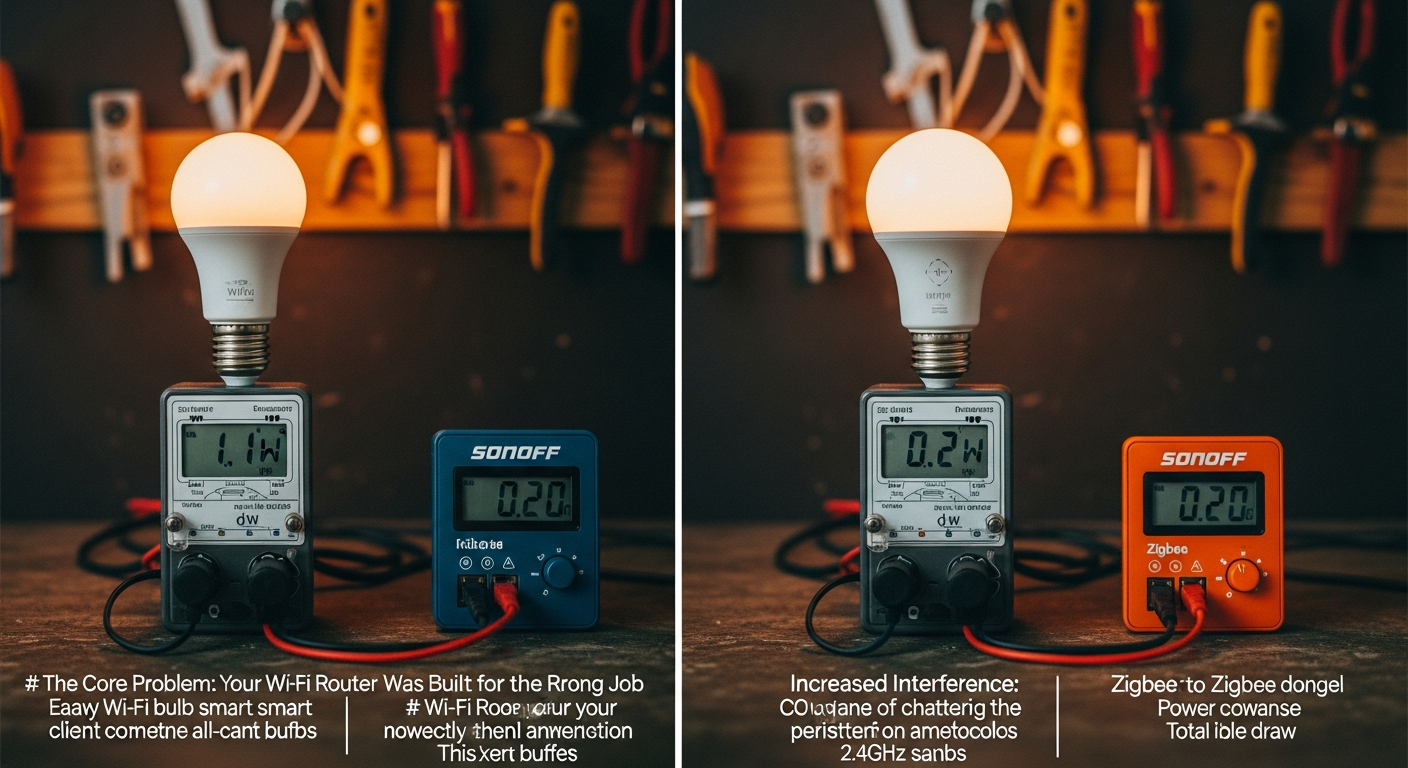
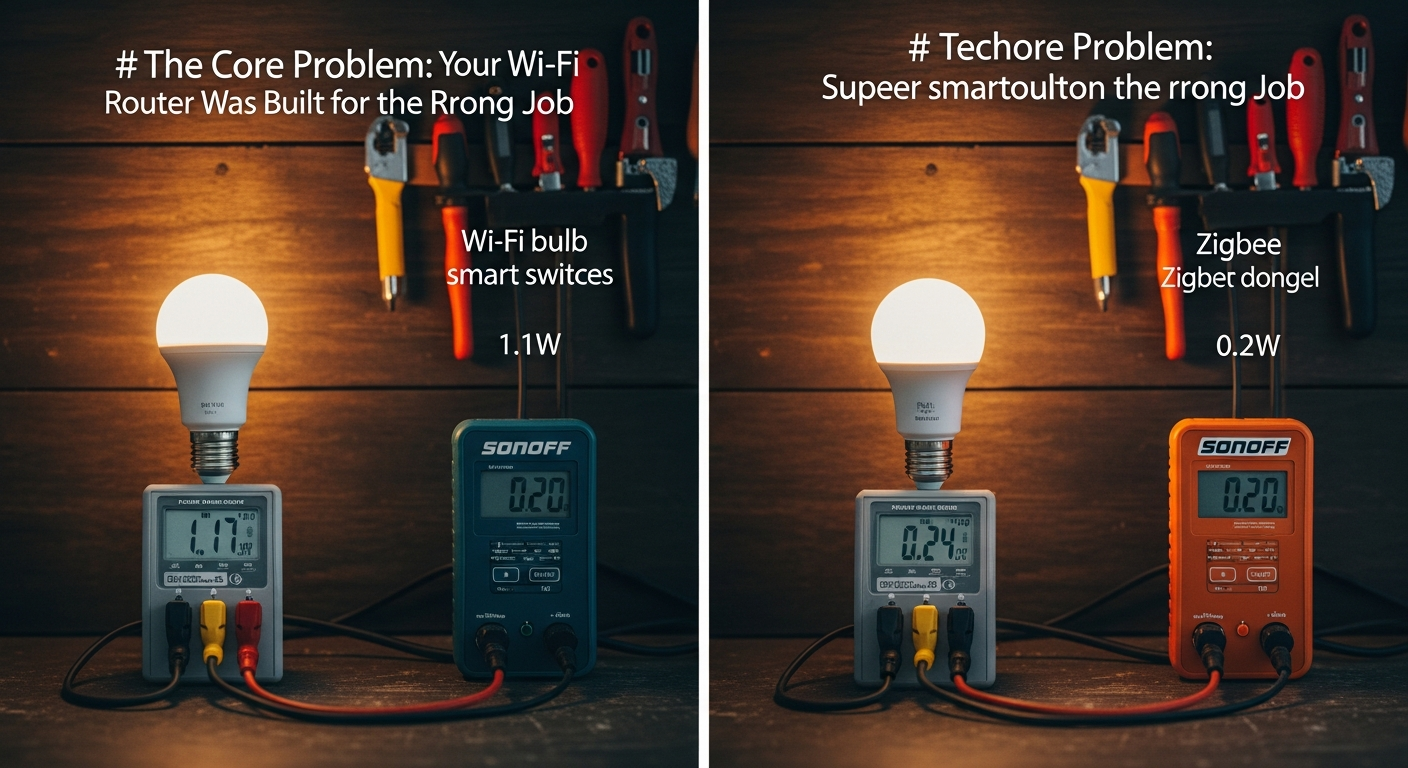
- Average Wi-Fi Bulb Idle Power: 1.1W
- Average Zigbee Bulb Idle Power: 0.04W
- Installation Logic (The Math):
- Let’s assume a modest smart home with 30 bulbs.
- Wi-Fi System Idle Power:
30 bulbs * 1.1W = 33 Watts - Zigbee System Idle Power:
(30 bulbs * 0.04W) + 1W (for the coordinator) = 2.2 Watts - Difference: 30.8 Watts of continuous, wasted power.
- Efficiency ROI (Annual Cost):
- That 30.8W of vampire drain runs 24/7.
30.8W * 24 hours/day * 365 days/year = 269,808 Whor~270 kWh- At an average US electricity cost of $0.17/kWh, that’s $45.90 per year, every year, just in wasted standby power. The Zigbee system costs about $3.00. The “cheaper” Wi-Fi bulbs cost you more in the long run.
This calculation doesn’t even factor in the time you’ll waste troubleshooting a congested Wi-Fi network or dealing with unresponsive lights. My time is worth more than that.
FAQ: Troubleshooting Common Failures
-
Why do my Wi-Fi bulbs keep going offline?
- Your router is overloaded. It cannot maintain stable connections to dozens of devices. Each bulb is fighting for airtime. The solution is to move your smart devices to a separate, dedicated network like Zigbee.
-
My Zigbee bulb is unresponsive. What’s wrong?
- Range: It might be too far from the coordinator or the nearest mesh repeater. Add another mains-powered Zigbee device (like a smart plug) halfway between to act as a repeater.
- Interference: Your Zigbee channel might be conflicting with your 2.4GHz Wi-Fi channel. Advanced users can change the Zigbee channel, but this requires re-pairing all devices.
- Bad Bulb: Like any electronic, it can fail. Try pairing it closer to the coordinator to rule out range issues.
-
Why do my lights turn on one-by-one instead of all at once?
- You are using Wi-Fi bulbs. This is the “popcorn effect” caused by your router sending individual commands. Zigbee systems with proper group configuration solve this by issuing a single broadcast command that all lights obey instantly.
-
Can I use Philips Hue bulbs with an IKEA gateway, or vice-versa?
- Generally, yes. Thanks to the Zigbee 3.0 standard, most modern devices are interoperable. Using a universal coordinator like the SONOFF dongle with Home Assistant guarantees the highest level of compatibility across brands.
-
If my internet goes down, will my Zigbee lights still work?
- Yes, provided you are using a local control system like Home Assistant. Because the coordinator, the bulbs, and the Home Assistant server are all inside your local network, they can communicate without any connection to the outside world. This is a critical feature for reliability. If you use a cloud-dependent hub, you will lose control when the internet is out.



![DIY Smart Home Sensors [ESPHome Guide]](https://www.cannoncreek.com/wp-content/uploads/2026/01/article_image_1768313989_673-768x419.png)